
DeskClip
Something on your screen belongs on a customer's record: an error message, a confirmation number, a page somebody needs to see. One keystroke photographs it, you black out what should not be kept, and it is filed against them.
Getting started
These are the steps in the order somebody would do them. The same list is in the tool: press F1, or the control reading "How this works" at the top of the window.
1. Press Capture window, or the hotkey, while you look at it
Ctrl+Alt+C photographs the window in front of you and Ctrl+Alt+V takes whatever is on the clipboard. This window comes forward with the capture already in it. Where another application on this machine already owns one of those combinations, Keyway takes a free one instead and the This machine screen says which; the buttons along the top do the same thing either way.
2. Black out anything that should not be kept
Drag a box over it and press Black it out. The pixels underneath are overwritten rather than covered over, so the file that is kept cannot be turned back into what was on your screen. Do it now: filing cannot be undone either. A business can choose to keep an unredacted original as well, and the line beside the button says which this desk is on.
3. Say who it belongs to
One search box over your companies, your contacts, your deals and your booked jobs at once. Somebody filing a screenshot knows it belongs to Ridgeline Fabrication and should not have to know which of the four that is. A record that has been archived or merged away is refused, naming the record that replaced it.
4. Write one line saying why it matters
A picture with no sentence under it is something a person has to work out again in six months. What it is and why it was kept, in one line, is the difference between a record and a folder of screenshots.
5. File it
The picture goes into your organisation's document store and a line goes on that customer's timeline, where every other Keyway tool already looks. Until you press it the capture exists only in this window. If it does not finish, the capture stays here with the reason on it, and Try filing it again cannot put the same picture on the record twice.
6. Find it again on Filed
The second screen is everything this organisation has filed with DeskClip, newest first, with the customer it went to and the line somebody wrote under it. Choosing a row offers to open that customer wherever the rest of their record is, and takes the reference to the capture with it, so whatever you write next can point at the picture.
The screens, and what to do first on each
Each of these opens with nothing on it on a new install. What the tool says on that screen is what this section says, because it is the same sentence.
Nothing is captured yet
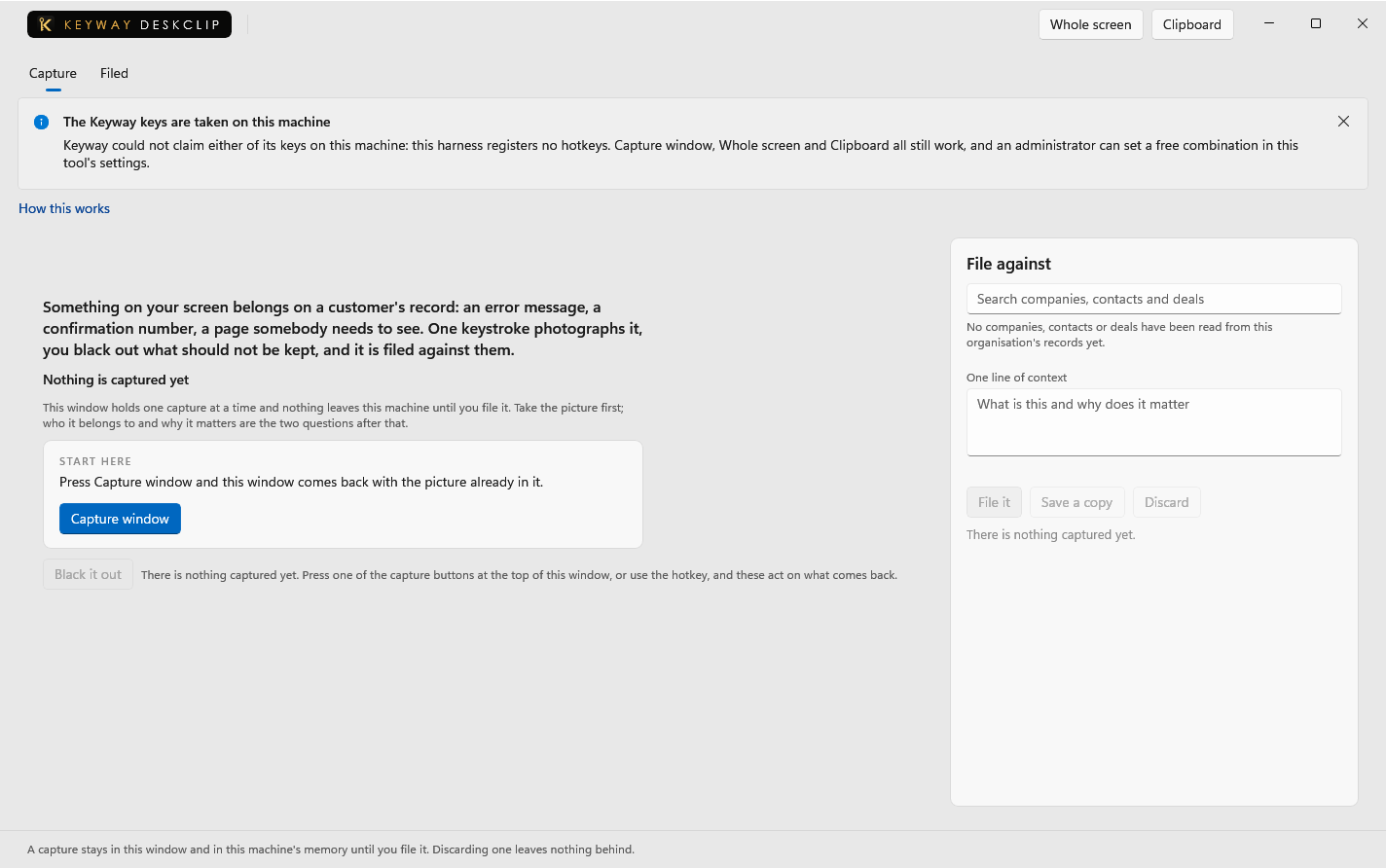
This window holds one capture at a time, so taking another replaces the one that is here. Take the picture first; who it belongs to and why it matters are the two questions after that.
First thing to do: Press Capture window and this window comes back with the picture already in it.
Nothing has been filed yet
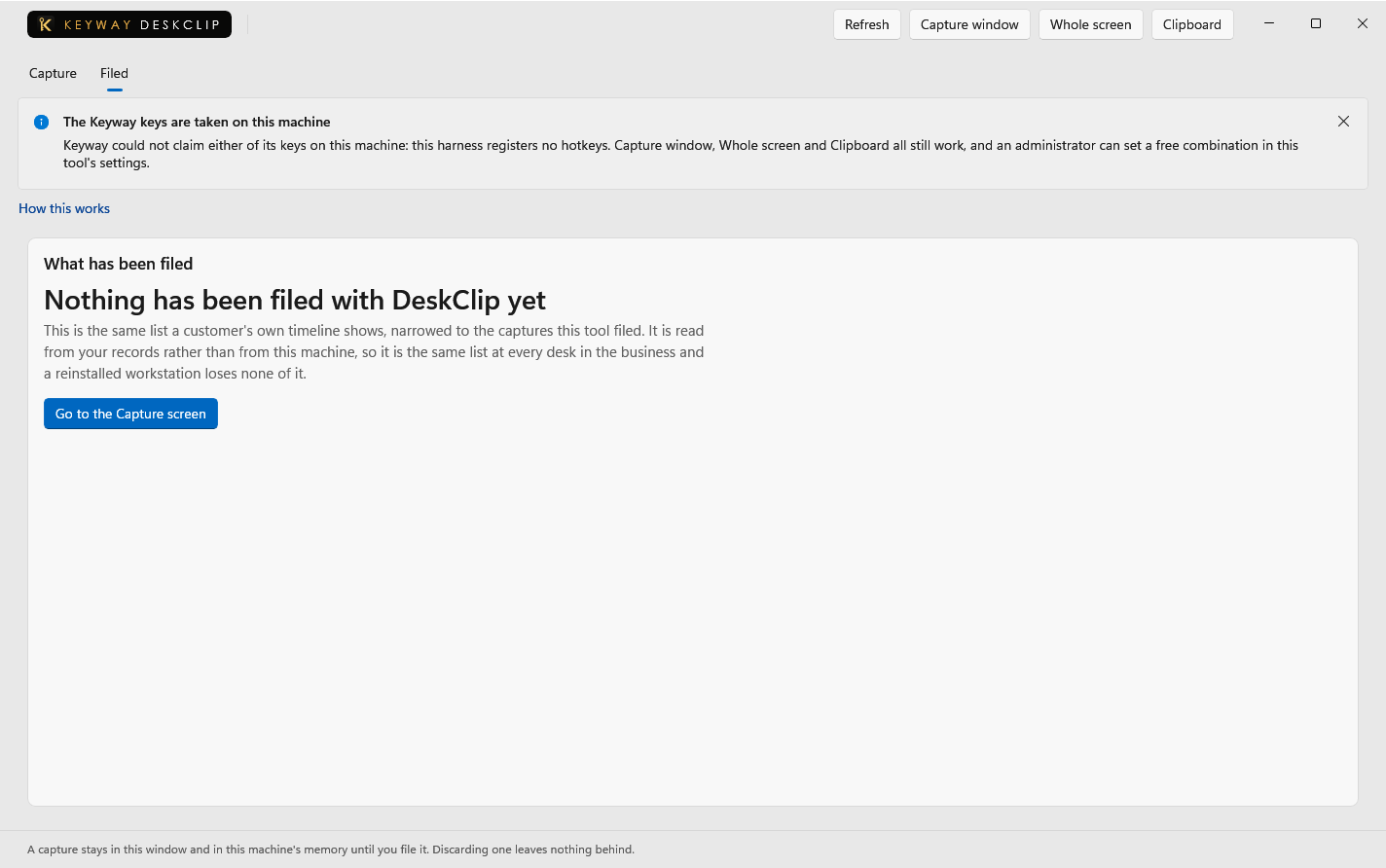
The captures this business has put on customer records: the same list a customer's own timeline shows, narrowed to the ones this tool filed. It is read from your records rather than from this machine, so every desk sees it and a reinstalled workstation loses none of it.
First thing to do: Go to the Capture screen
If you get stuck
Write to support@keywaysuite.com. We answer within one business day. Keyway can send us what it knows about your installation: open the hub, go to About and press Get support. It writes one file wherever you choose and never includes your licence, a password, a customer name or a customer address.