
Intake
The front door. Somebody telephones, somebody walks in, a technician's phone drops photographs into a folder - it all lands in one queue and stays there until a person decides what it is.
Getting started
These are the steps in the order somebody would do them. The same list is in the tool: press F1, or the control reading "How this works" at the top of the window.
1. Take an enquiry at the desk
Somebody rang or came in: type who they are and what they want, and add it to the queue. Nothing is written to any customer's record at this point, which is what makes it safe to type in a hurry while they are still on the telephone.
2. Or paste an email off the clipboard
Copy the message out of your mail client, headers included, and paste it under the desk form. The sender, the subject and the address to reply to are read off it and the row joins the queue like a telephone call would. Nothing connects to the mailbox and nothing is sent back.
3. Or point it at the folder the phones sync into
One subfolder is one handover: the photographs and a note somebody left on site. A folder is only read once every file in it has been still for a minute, so a half-uploaded set is never taken as a finished one. Anything refused is listed by name with the reason.
4. Decide what each one is
The oldest waiting enquiry opens on its own, with Take it on and Decline at the top. Taking it on is the step that writes a person into your records, and a customer already on file is named before you press; declining keeps the enquiry here with what was decided and writes nothing to anybody's record.
5. Say how quickly you mean to answer
Put a number of minutes in Answer within, on the Handovers screen, and the queue starts saying which enquiries have been left past it and how many of today's were answered inside it. Three days is a disaster for an emergency plumber and a normal week for an architect, so the number is yours: with none set the queue states the wait and passes no judgement on it.
6. Know what happens next, and what does not
It anchors the enquiry to a person and stops there: raising a deal or a job belongs to the tools that own those. It also sends nothing and reminds nobody, so this queue is a board somebody opens rather than something that arrives.
7. Write a form's questions, and know where it can go
Choose a form and add its questions one at a time: what it asks, what kind of answer it takes, and whether somebody has to answer it. A form goes online from On the web, once this machine is connected with the intake account the owner set up; what it takes waits on the queue, and nobody becomes a customer until somebody here takes them on.
The screens, and what to do first on each
Each of these opens with nothing on it on a new install. What the tool says on that screen is what this section says, because it is the same sentence.
Nothing has arrived yet
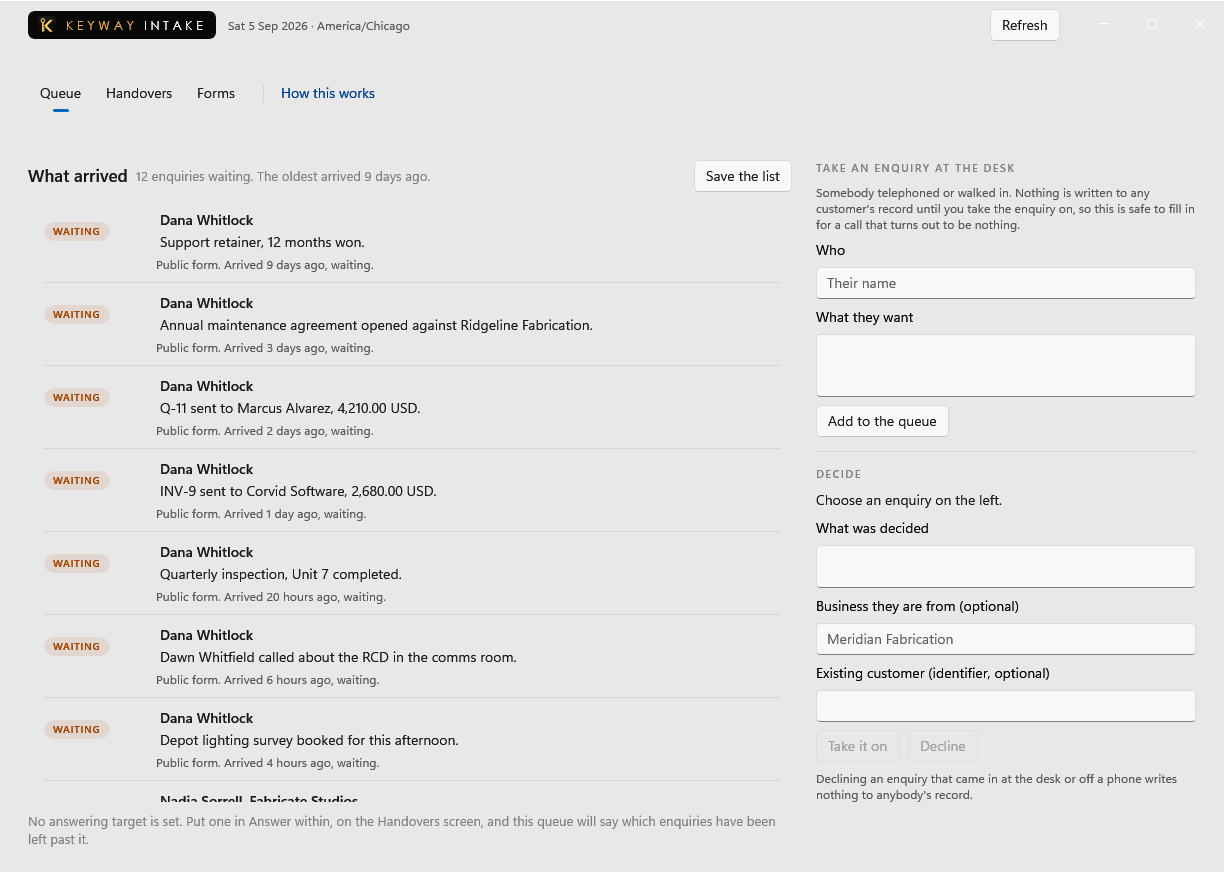
One list of everything that came in from outside, held until somebody decides what it is. It comes in typed at the desk, pasted from an email, read out of a folder the phones sync into, or from a form on the web.
First thing to do: Fill in Who and What they want, then press New enquiry.
Photographs from a job, without anybody typing them in
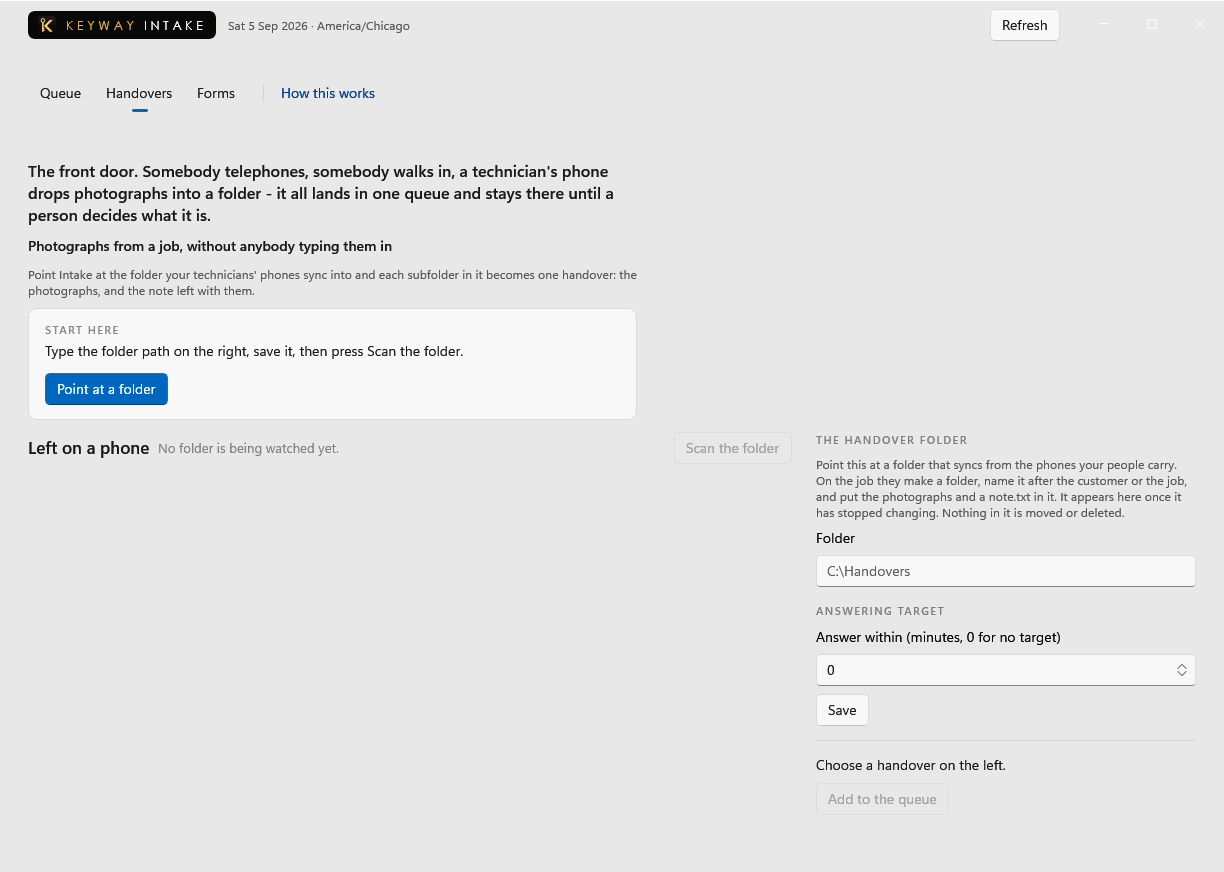
Point Intake at the folder your technicians' phones sync into and each subfolder in it becomes one handover: the photographs, and the note left with them.
First thing to do: Type the folder path under Folder, press Save, then press Scan the folder.
No forms yet
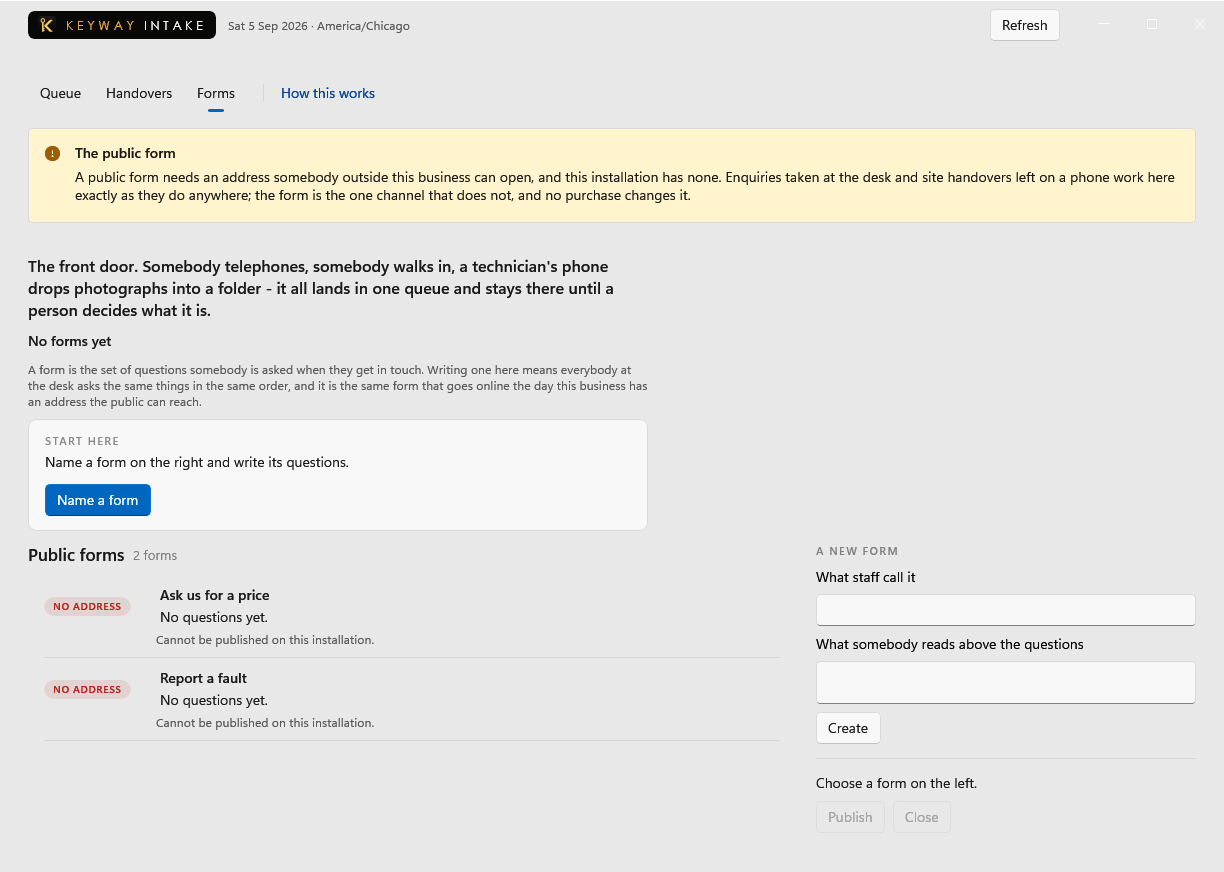
A form is the set of questions somebody is asked when they get in touch. Writing one here means everybody at the desk asks the same things in the same order, and it is the same form that goes online once this machine is connected under On the web.
First thing to do: Type a name under What staff call it, press New form, and write its questions.
If you get stuck
Write to support@keywaysuite.com. We answer within one business day. Keyway can send us what it knows about your installation: open the hub, go to About and press Get support. It writes one file wherever you choose and never includes your licence, a password, a customer name or a customer address.