
Client Portal
The record of what a customer was released and when. Name a bundle of documents already on their record, say which people at that customer may have them and until when, and publishing writes it onto their own timeline.
Getting started
These are the steps in the order somebody would do them. The same list is in the tool: press F1, or the control reading "How this works" at the top of the window.
1. Press New release and give it a name
"Final drawings", "the warranty pack", "the signed variation". A release is a named bundle of documents that are already filed against that customer. Nothing is copied and nothing new is uploaded: the release points at what is already there.
2. Set a client up
A company your organisation already holds, plus the people at it who are allowed to receive things. Both come from records Keyway already has: this tool does not own your customers and does not create one.
3. Say who, and until when
The named people at that client, from a date, until a date. The term has a default you set once and can override for one release, and the register warns you before one ends rather than after.
4. Publish it, and withdraw it when it stops applying
Publishing records the release and files an entry on that customer's own timeline, and withdrawing is recorded the same way. What you have afterwards is an answerable record of what was released, to whom, on what date, and what was taken back.
5. Ask a customer to answer, as themselves
On Customer links, choose a document or a service request and one person, and say what you are asking: acknowledge, approve, confirm or sign. The page goes out by your own mail under your name, and their reply is recorded as their own answer, with when, from where and the page's digest.
6. Run the community your customers meet in
On Community, connect this machine once with the account the owner set up, then make spaces and say who each is for, invite people from your contacts, set the words and rules that hold back what should not be posted, and decide what members reported.
7. Save the record when somebody asks for it
One release, written out as a plain text file: what it contained, who it was for, and the dates it ran between. It is what you hand to whoever is asking, and saving it also repairs an entry that never reached the timeline.
The screens, and what to do first on each
Each of these opens with nothing on it on a new install. What the tool says on that screen is what this section says, because it is the same sentence.
Nothing has been released yet
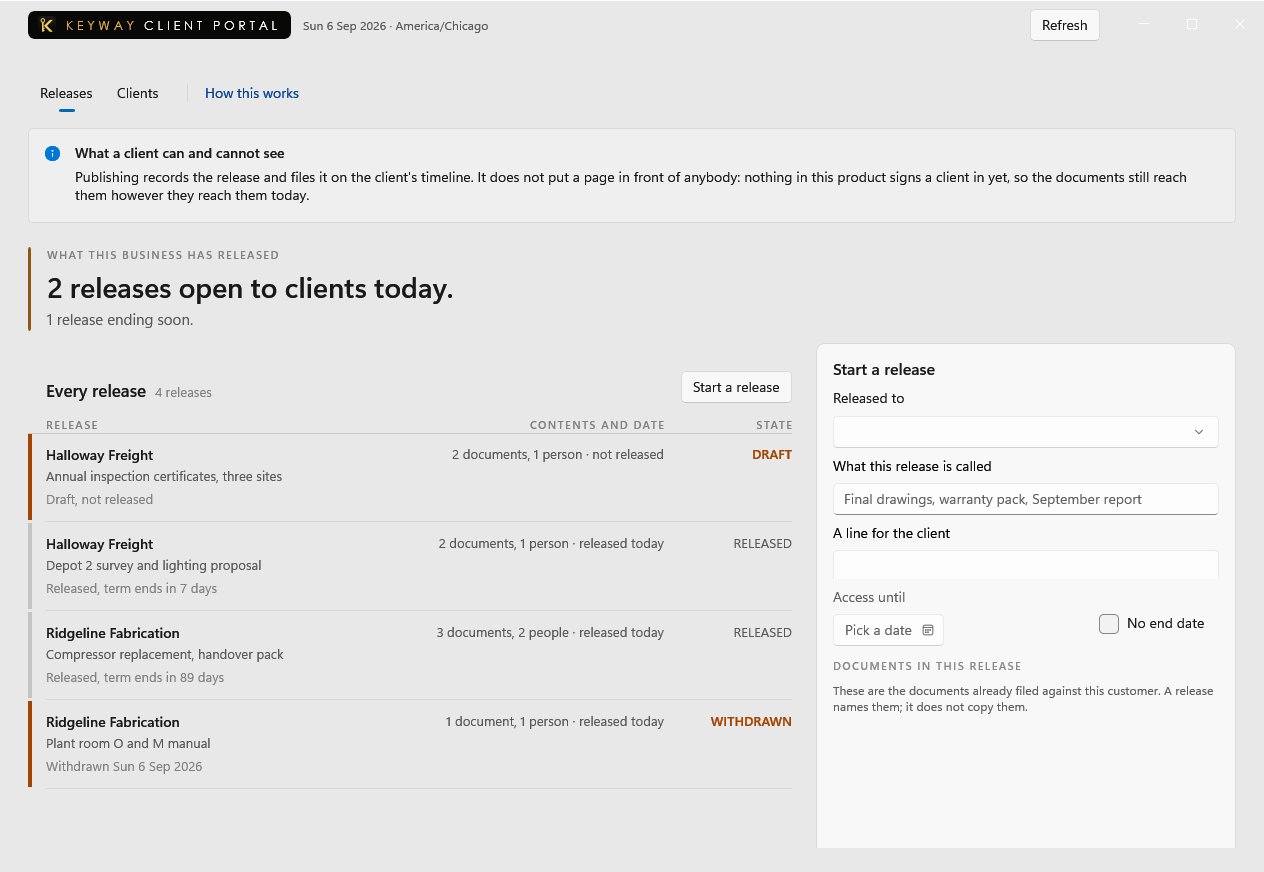
A release starts as a draft for one client, naming documents already filed against them, and it is listed here from the moment it is saved.
First thing to do: Name a release in the card on the right, tick its documents and who it is for, and press Save.
No clients set up yet
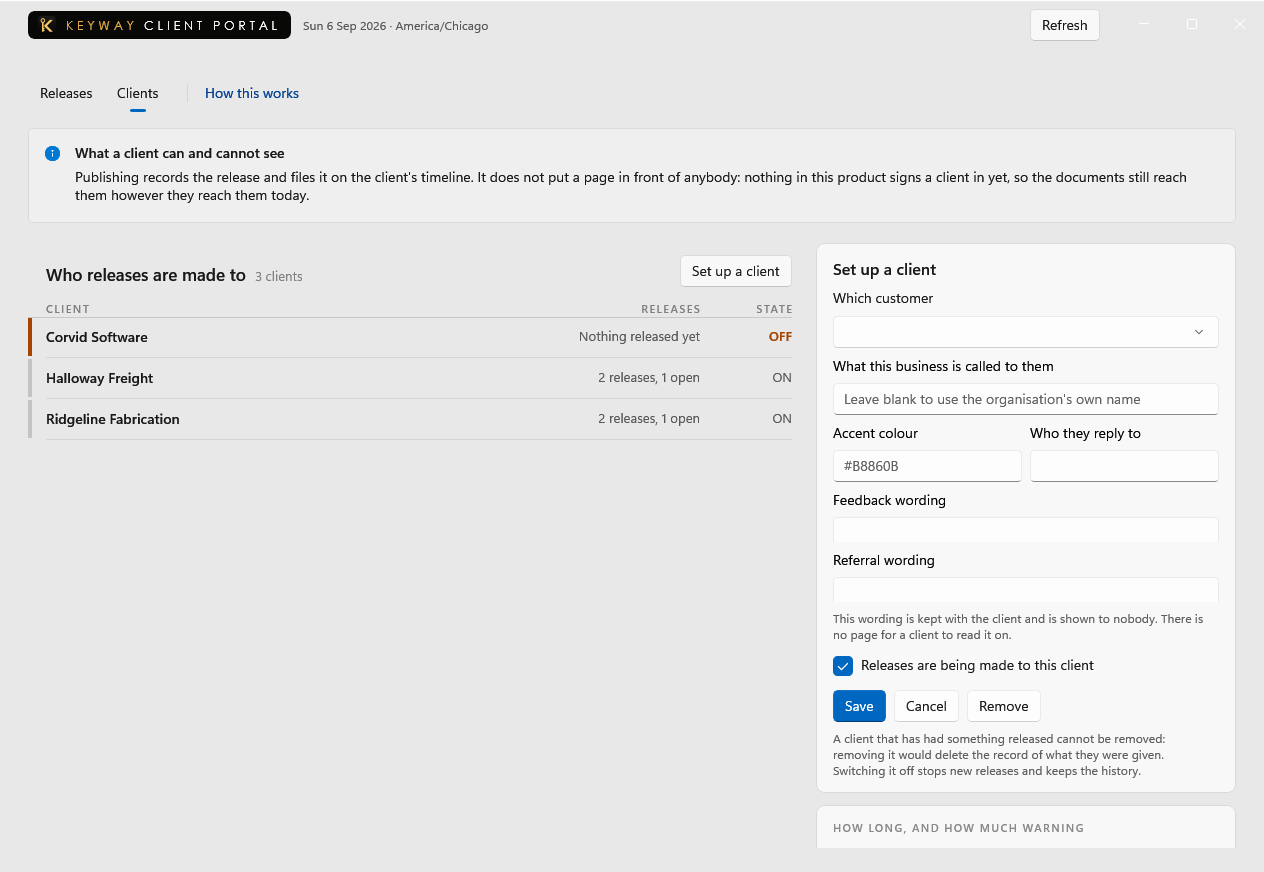
A client is a company you already hold, plus the contacts at it who are allowed to receive a release. Setting one up decides who may have things; it does not create the company or the people, who come from records Keyway already has.
First thing to do: Pick a company in the card on the right and press Save. Who may receive a release is named on the release itself.
Nobody has been asked to answer yet
A link asks one person to acknowledge, approve, confirm or sign one page. Their reply is recorded as their own answer, with the time, the address it came from and the page's digest, and it works once.
First thing to do: Choose the customer above the list, fill in the card on the right, and press Send the link.
No spaces in the community yet
A space is where one client company's people, a group of members, or several companies that agreed to it talk to each other and to you. Who can see it, read it and post in it is set on the space.
First thing to do: Fill in the space card on the right, choose who it is for, and press Save.
If you get stuck
Write to support@keywaysuite.com. We answer within one business day. Keyway can send us what it knows about your installation: open the hub, go to About and press Get support. It writes one file wherever you choose and never includes your licence, a password, a customer name or a customer address.