Review Capture
Asking a customer for a public review at the moment the work is finished, keeping the list of who was asked, who left one and who was never chased, and separately asking them privately how a finished job went, naming the people who did it.
Getting started
These are the steps in the order somebody would do them. The same list is in the tool: press F1, or the control reading "How this works" at the top of the window.
1. Paste the review link, then press New ask
The link your review platform gives you: a business profile, a marketplace listing, your own page. The first time, paste it into Where it lands on Ask, pick who the work was for and press New ask: the link is stored as your review page and Set up holds it after. Everything this tool produces - the counter card, the code, the message - points at it.
2. Write what you will say
A script is the sentence somebody actually says or sends when they ask. The customer's name, the work and the link are filled in for you. A code held up with nothing said gets scanned far less often than one with a sentence attached to it.
3. Ask on the day the work was done
Pick the customer, pick how you are asking - across the counter, by text, by email - and the tool produces the card, the code or the wording. The ask is written onto that customer's own history the moment you make it, which is what makes the next step possible.
4. Chase the ones who never answered
Follow-ups is everybody who was asked and has not been marked as reviewed or as having said no, once your follow-up window has passed. Recording an ask rather than just sending one is what buys you that list.
5. Ask privately how a finished job went
Private feedback is the other half, and it never points anybody at a review page. A survey is about one completed visit or resolved request and names the people who did it; somebody here presses Send it, and what comes back stays in this tool. Somebody named on the job can put their own account beside the answer, and an owner or an admin decides.
The screens, and what to do first on each
Each of these opens with nothing on it on a new install. What the tool says on that screen is what this section says, because it is the same sentence.
There is nowhere for a review to land yet
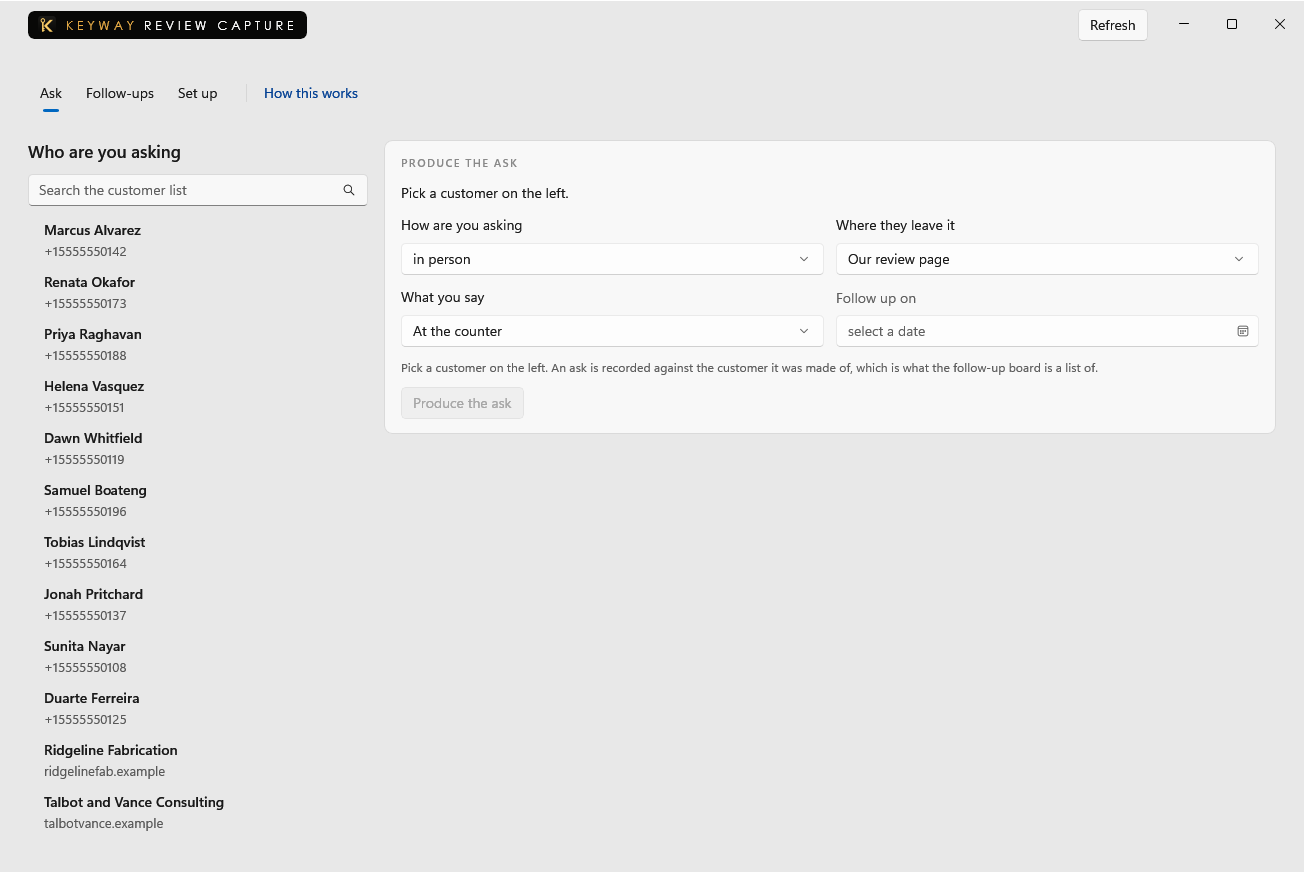
This screen makes the card, the code or the message that sends a customer to a review page.
First thing to do: Paste the link your platform gives you, pick a customer and press New ask.
Nobody has been asked yet
This is who was asked, who somebody has marked as reviewed, who said no, and who has been waiting longer than the follow-up window you set.
First thing to do: Go to Ask and make one on your next finished job.
Nothing is set up yet
Two things live here: the place a review should land, and the words somebody says when they ask for one. Both are yours to write and both take a minute.
First thing to do: Paste the link your platform gives you, then press Add the page.
Nothing has been asked privately yet
A survey is about one finished job: a visit completed in Keyway Scheduling and Dispatch, or a request resolved in Keyway Service Desk. Neither has one yet.
First thing to do: Open today in Scheduling, complete the visit that is done, and it is offered here.
If you get stuck
Write to support@keywaysuite.com. We answer within one business day. Keyway can send us what it knows about your installation: open the hub, go to About and press Get support. It writes one file wherever you choose and never includes your licence, a password, a customer name or a customer address.