
Keyway Scheduling and Dispatch
Book a job, put somebody on it, and move it when the day changes. A day at a time or the whole week, with the work nobody has been given a date for beside it, and the jobs that come back on a rule booked ahead.
Getting started
These are the steps in the order somebody would do them. The same list is in the tool: press F1, or the control reading "How this works" at the top of the window.
1. Book a job, or read a whole list of them in
Press New job, say what it is, who it is for and where, and give it a day and a time. It appears on that day at once, and a job written down with no date yet is not lost: it waits in the queue down the left of the board until somebody gives it one. Import a job list takes a spreadsheet of them and shows every row it would book before it books one.
2. Put somebody on it
Pick the job and send it to a person. They get a lane of their own on the day board, and everything nobody is on sits in the first lane so it cannot be missed. A lane belonging to somebody who is off is greyed and says why rather than reading as free.
3. Move it when the day changes
Somebody is ill, a part is late, a customer rings. Open the job, change the day or the time and press Reschedule, or take it off the calendar altogether and it goes back to the queue. The board says when two jobs land on one person at once.
4. Run the week
Seven days side by side, including the empty ones, because the empty day is what you are looking for when a customer asks how soon somebody can come out. Each heading says how much of that day nobody is on and how much of it clashes.
5. What a customer asked for and nobody has booked
The Tickets screen holds requests raised against a customer, with a time to answer by and a time to finish by worked out from their priority: ring them back, press Told the customer, then give it a day on the board. The Requests screen holds what somebody asked for on your booking page: Accept books the job, Decline keeps it with why.
6. Set up the work that comes back
A weekly clean, a monthly inspection, a quarterly service. Say the rule once on the Repeats screen and Keyway books the jobs ahead, so nobody types the same job fifty-two times a year. Each one is an ordinary job after that: assigned, moved and completed like any other.
7. Write down what was done, then close it
A note goes on the customer's own permanent record and outlives this tool. Closing a job takes it off the board and leaves it on their history, so what this business has done for a customer over a year is a question that has an answer.
The screens, and what to do first on each
Each of these opens with nothing on it on a new install. What the tool says on that screen is what this section says, because it is the same sentence.
Nothing is booked on this day
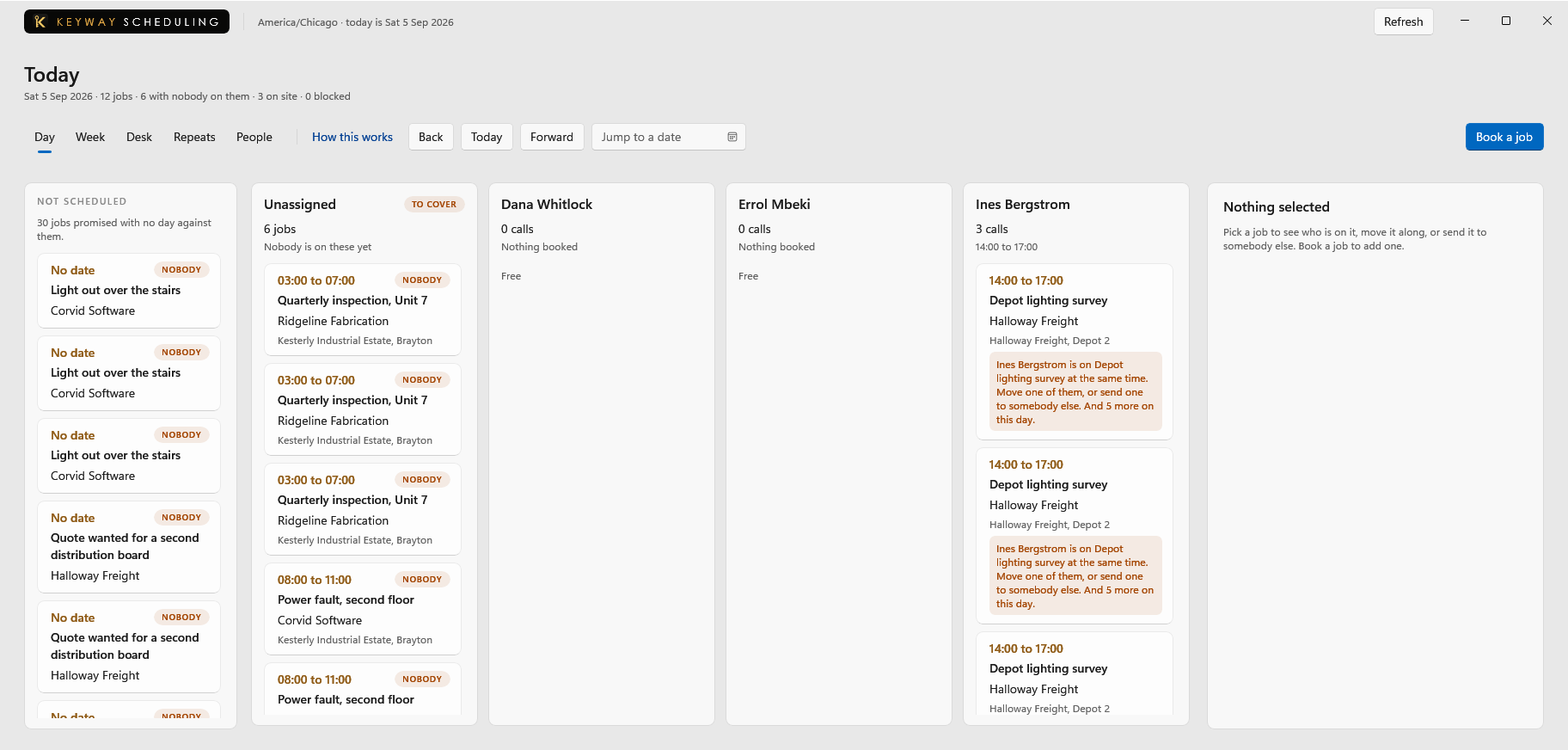
Each job lands in the column of the person on it, and work nobody is on has a column of its own. Somebody who is off that day says so rather than reading as free.
First thing to do: Press New job for work that already has a slot.
Nothing is booked this week
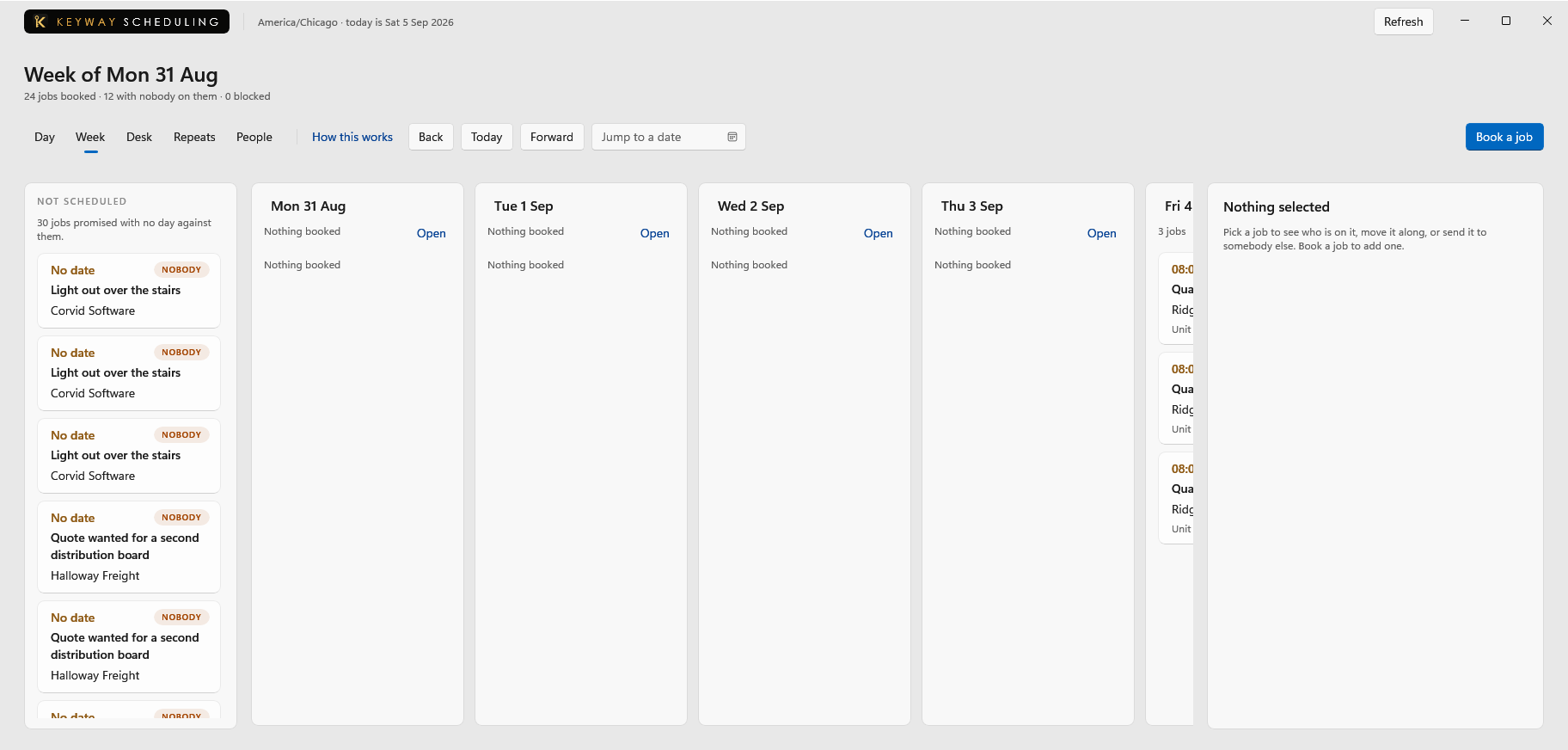
Seven days side by side, including the empty ones. The empty day is what you are looking for when a customer asks how soon somebody can come out. Each heading carries what is not covered on that day.
First thing to do: Press Go to Day to open one and book into it, or New job to put work straight on a day.
Nobody has asked for anything yet
A request is something a customer asked for that nobody has finished. This screen groups them by what happens next, so anything past what was promised is at the top and anybody still waiting to hear back is under it.
First thing to do: Press Raise a ticket and say what somebody asked for.
Nothing repeats yet
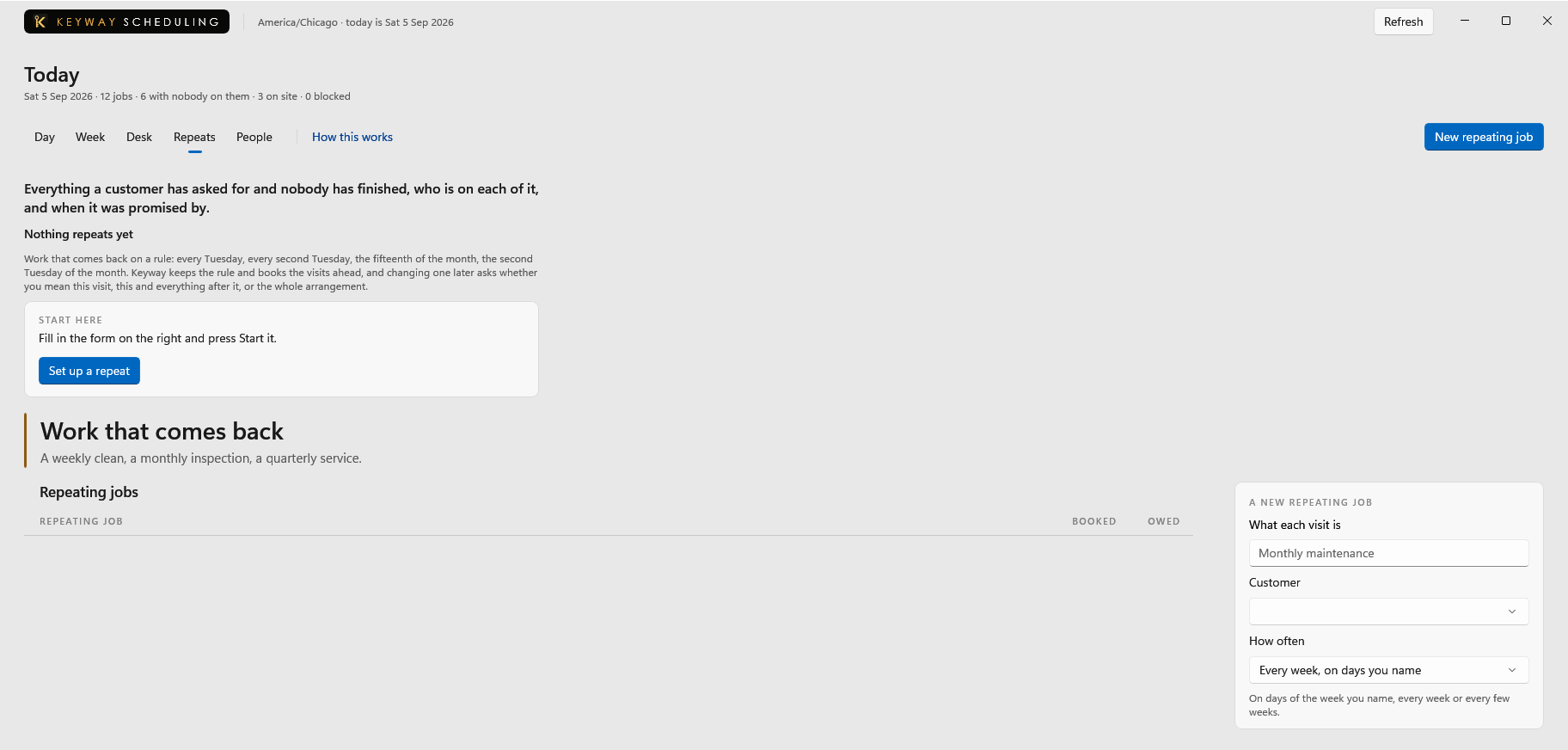
Work that comes back on a rule: every Tuesday, every second Tuesday, the fifteenth of the month, the second Tuesday of the month. Keyway keeps the rule and books the jobs ahead, and changing one later asks whether you mean this job, this and everything after it, or the whole arrangement.
First thing to do: Press New repeating job, fill the form in, then press Start it at the foot of it.
Nobody has asked for a time yet
Your booking page offers the free times somebody here published, and each request waits here until a person accepts it, which books the job, or declines it with why. Nobody is booked and nobody is added to your customers before that.
First thing to do: Connect this machine under The booking page, then press Publish availability.
Nobody can be sent to a job yet
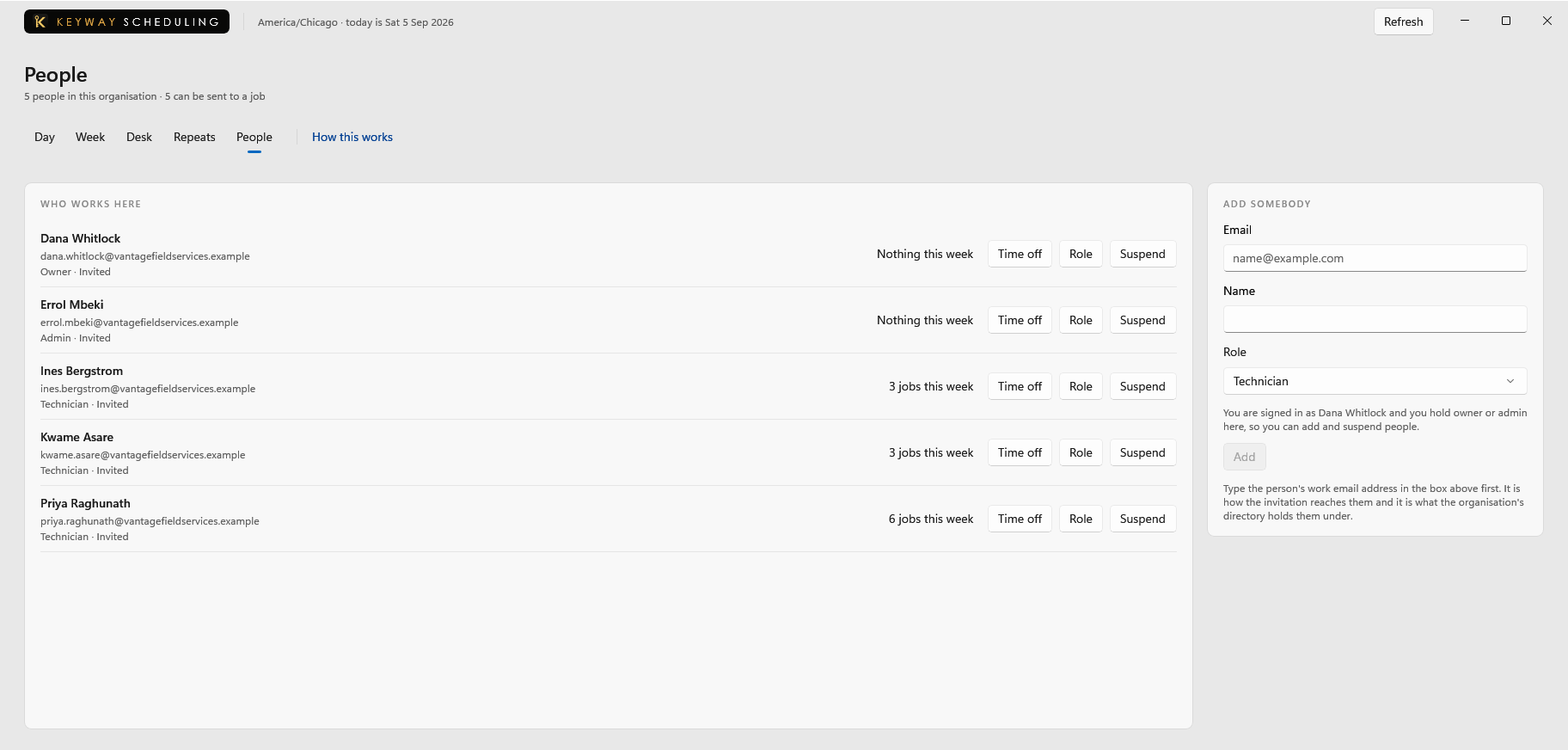
Everybody in this organisation, how much of this week is theirs, and who is not in. A person here is somebody a job can be sent to.
First thing to do: Press Add people in Set up: the Keyway hub opens at the step that adds them, and they show here once added.
If you get stuck
Write to support@keywaysuite.com. We answer within one business day. Keyway can send us what it knows about your installation: open the hub, go to About and press Get support. It writes one file wherever you choose and never includes your licence, a password, a customer name or a customer address.